How To Clear Google Search History: Step-by-Step Guide
This article explains how to clear Google search history for various time periods, including automatically deleting search activity on a regular basis.
When you use Google Search and have the Web and App Activity setting turned on, your search activity is saved to your account. The purpose of this is to help Google improve your personalized search results and make suggestions you’ll most likely find helpful.
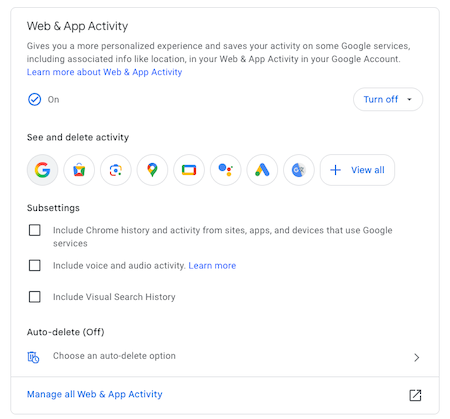
However, you may prefer to permanently remove your search history for privacy reasons. Luckily, Google has a number of options for manually or automatically deleting your search history and other Google activity based on your preferences.
The Google My Activity Section: Clear Search History Options
In your Google account’s My Activity section, you can make adjustments to your search history, including:
- Erase the search history that’s been saved to your account.
- Change your search settings to decide what Google saves and when your history is deleted.
Google lets you decide how much of your search history to delete: a single search or search history from a day, week or all time. It’s important to know that once you delete your Google Search history, you can’t retrieve it — it’s gone permanently.
In this article, we’re going to walk you through the steps of deleting your Google search history using a phone, tablet or computer. These steps will work whether you’re on an Android or Apple device, but note that nuances may be different due to operating system and recent updates.
Internet Privacy offers monitoring and removal of your personal information online so you can better protect your identity. Contact us today at 866-349-0130 to learn more.
How To Delete Your Google Search History on a Mobile Device
Here’s how to delete Google search history using an Android or Apple mobile device:
Step 1: Find your search history in Google
On your phone or tablet, open the Google app. Note that you’ll be using the Google app, not the Google Chrome app.

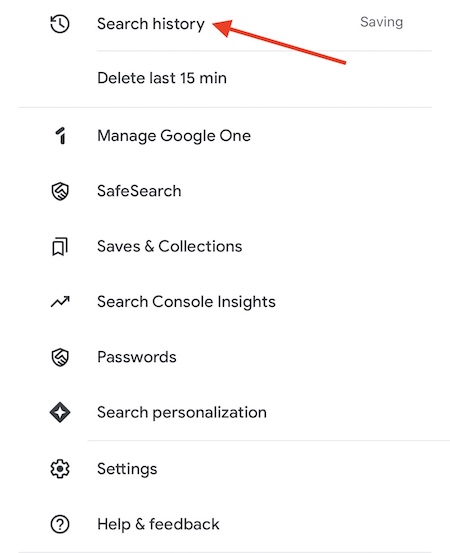
On the top right, click your Profile Picture or Initial, then select Search History.
Step 2: Navigate to the Delete menu
Click the drop-down menu that says Delete. You’ll have four options to choose from:
- Delete today
- Delete custom range
- Delete all time
- Auto-delete
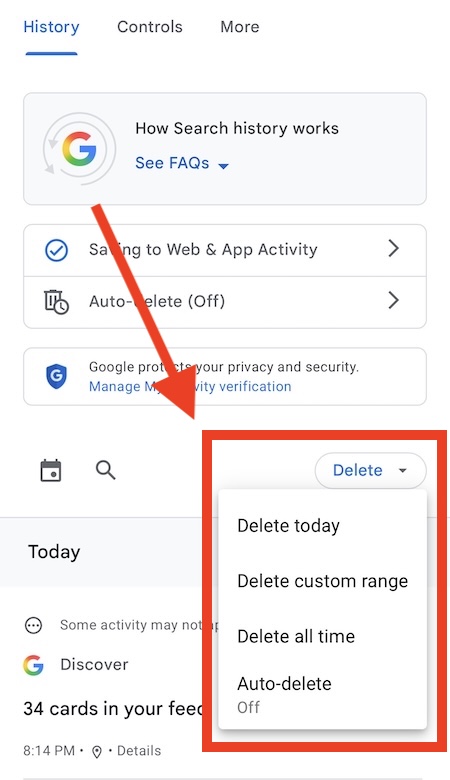
Make sure you’re positive about wanting to delete your history. For some of these options, clicking the drop-down menu selection will automatically delete the history.
Step 3: Select your Google history deletion preference
If you click Delete Today, the search history will be deleted as soon as you click it.
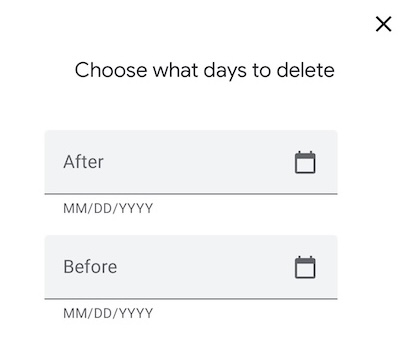
Selecting the Delete Custom Range option will open a page where you can set the span of days you want search history deleted for.
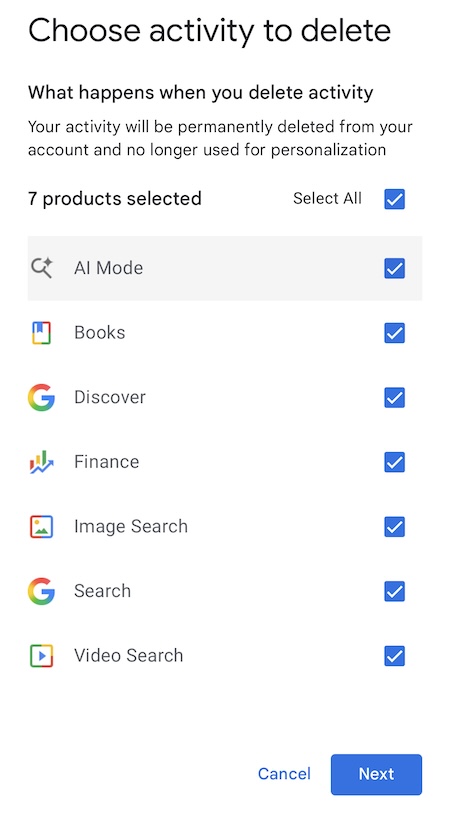
By selecting Delete All Time, you’ll be brought to a page where you can select which types of history you want removed, such as image or video searches.
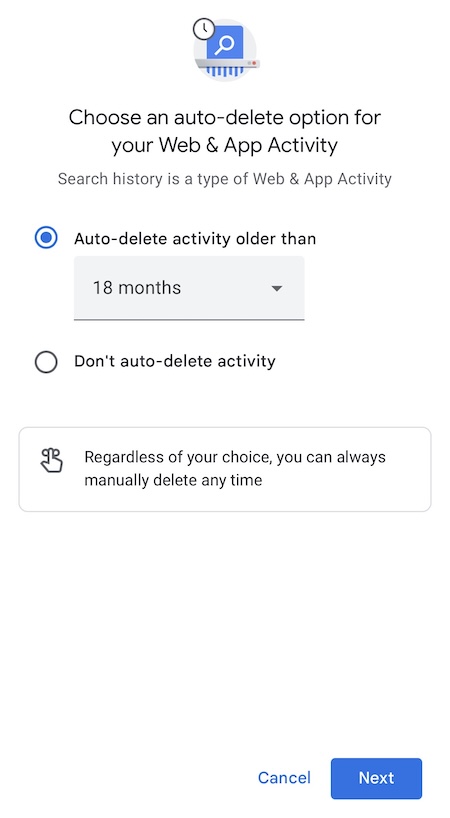
If you select Auto-Delete, you’ll go to a page where you can set up automatic deletion for activity older than 3, 18 or 36 months. There’s also the option to turn auto-delete off.
We work on behalf of our clients to monitor their online data and remove personal information from the internet. Give us a call at 866-349-0130 to learn more.
How To Delete Your Entire Google Search History on a Mobile Device
If you’re deleting your search history using a computer, the steps are a bit different from using a mobile device. Here’s what to do.
Step 1: Go to your account settings
Log in to your Google account on your computer and click your Profile Icon on the top right of the page. On the window that opens up, select Manage Your Google Account right under your profile image.
Step 2: Find your search history
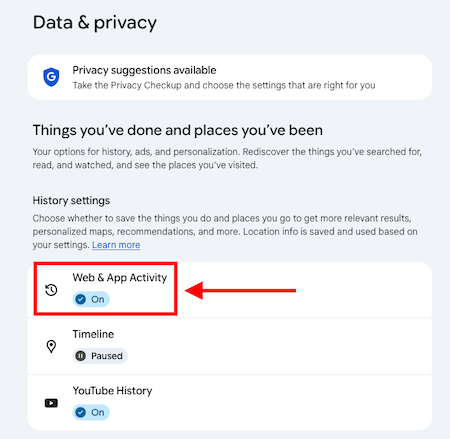
On the left, select the Data and Privacy option.
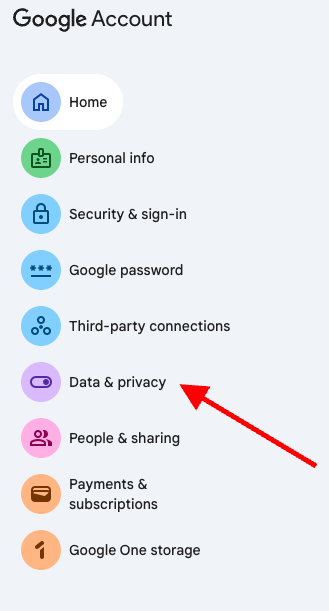
Then, select Web and App Activity on the Data and Privacy page.
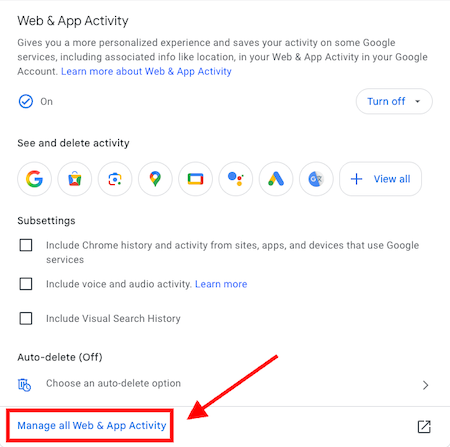
At the bottom of the page, click Manage All Web and App Activity.
Step 3: Delete your search history
From here, you’ll click the Delete drop-down menu and make your selection:
- Choosing Last Hour will open a confirmation window.
- Selecting Last Day will open a confirmation window.
- Clicking All Time will open a window where you can pick and choose which types of activity to delete.
- The Custom Range option will open a window where you can set the start and end dates.
There’s also an option for Auto-Delete that give’s the the choice between auto-deleting Google app and web activity every 3, 18 or 36 months, or not at all.
Work With Internet Privacy Experts
At InternetPrivacy.com, we offer data removal services to get rid of your personal information and help you protect your identity and the identities of your loved ones. Our services include deep web scans, data removal, ongoing monitoring and detailed reporting.
You deserve to protect your personal and sensitive information online. To keep it from getting into the wrong hands, you can trust our decade-plus of experience defending individuals and businesses on the internet.
Do you need help removing your personal data from people search databases and online search results? Get started for free with a quick personal data scan.